Understanding Internet Bandwidth Limits: What’s Really Slowing You Down?
I’ve spent 15 years pushing the boundaries of internet speed, and let me tell you – nothing gets me more excited than helping people break free from bandwidth bottlenecks! When your Netflix starts buffering during the season finale of your favorite show, I feel your pain. Let’s dig into what’s really putting the brakes on your internet speed.
TLDR: What exactly are internet bandwidth limits and how do they affect your connection?
1️⃣ What’s the difference between bandwidth and data caps?
Bandwidth is your connection’s maximum capacity at any moment (like a highway’s width), while data caps limit total monthly usage (like a fuel tank).
2️⃣ Why do ISPs impose bandwidth limits?
ISPs manage network congestion and maintain service quality by limiting individual users’ maximum speeds during peak times.
3️⃣ How can you tell if you’re hitting bandwidth limits?
Watch for sudden speed drops during peak hours (7-11 PM), buffering videos, or slow file downloads when you should have plenty of speed.
Ever feel like your internet’s suddenly crawling when you’re trying to stream the big game? You might be bumping up against bandwidth limits. Let’s break it down.
Bandwidth limits are caps on how much data you can transfer at once. Think of it like a water pipe. The wider the pipe, the more water flows through. With internet, that “water” is data.
Frontier, one of the fast internet service providers out there, uses bandwidth limits to manage network traffic. Here’s how it might affect you:
Streaming: Trying to watch 4K Netflix? You need about 25 Mbps. If Frontier limits you to 10 Mbps during peak hours, say goodbye to ultra-HD.
Gaming: Online games don’t need tons of bandwidth, but limits can increase lag. Suddenly, you’re losing Fortnite battles you should’ve won.
Video Calls: Zoom needs 3-4 Mbps for HD. Hit a bandwidth limit, and your boss might start freezing mid-sentence.
Why Do Limits Exist?
ISPs aren’t just being jerks. Bandwidth is a finite resource. Limits help prevent network congestion. It’s like how highways have speed limits to keep traffic flowing.
Types of Bandwidth Limits
Data Caps A monthly limit on total data used. Go over, and you might face extra charges or slowed speeds.
Speed Throttling: Your speed gets reduced after hitting a certain usage threshold.
Time-Based Limits: Slower speeds during peak hours, usually evenings.
Real-World Impact
I once had a client in rural Idaho who couldn’t figure out why his Frontier connection slowed to a crawl every night. Turns out, the whole town was hitting bandwidth limits streaming after dinner. We worked with Frontier to upgrade the local infrastructure, and speeds improved for everyone.
Checking Your Limits
Not sure about your limits? Here’s what to do:
Check your plan details on your ISP’s website
Run a speed test at different times of day
Monitor your data usage with your ISP’s app
Remember, knowledge is power. Understanding your bandwidth limits is the first step to optimizing your internet experience. If you’re constantly hitting limits, it might be time to explore other fast internet service providers in your area.
Next up, we’ll dive into how ISPs actually control these limits. Spoiler alert: it’s not always straightforward!
How Do ISPs Control Bandwidth?
Ever wonder why your internet seems to slow down right when you’re in the middle of an intense online gaming session? It’s not just bad luck – your ISP is likely flexing its bandwidth control muscles. Let’s dive into the nitty-gritty of how they do it.
Throttling: The Digital Speed Bump
Throttling is the most common way ISPs control bandwidth. It’s like putting a governor on a car engine – you’ve got all that horsepower, but you’re limited to 55 mph.
Time-Based Throttling:
Peak Hours: Usually 7-11 PM when everyone’s streaming Netflix
My neighbor swears Frontier slows him down right when “Stranger Things” drops new episodes
Usage-Based Throttling:
Hit your data cap? Prepare for the slow lane
Spectrum used to throttle after 250GB/month, but they’ve gotten more generous lately
Traffic Shaping: Playing Favorites with Your Data
ISPs can prioritize certain types of traffic. It’s like having an HOV lane for important data.
It’s like a traffic cop for your data, directing flow to prevent jams
Real-World Examples
Frontier’s Approach:
Uses a mix of throttling and traffic shaping
I’ve seen speeds drop from 100 Mbps to 10 Mbps during prime time
Spectrum’s Strategy:
Claims no data caps, but still manages bandwidth during congestion
A client in NYC saw his 4K streams downgrade to HD during the Super Bowl
Fidium’s Fair Play:
Newer player with more modern infrastructure
Less likely to throttle, but still has network management tools in place
The Legal Landscape
The FCC has rules about transparency in bandwidth management:
ISPs must disclose their practices
But the fine print can be as clear as mud sometimes
How to Check if You’re Being Throttled
Run speed tests at different times of day
Use a VPN to see if speeds improve (it can bypass some throttling)
Check out Glasnost, a tool designed to detect traffic shaping
The Bottom Line
ISPs control bandwidth to manage their networks, but it can feel like they’re controlling your online life. If you’re constantly butting heads with limits, it might be time to shop around. Check out fast internet service providers in your area to see if there’s a better fit for your digital lifestyle.
Remember, knowledge is power. The more you understand about how ISPs control bandwidth, the better equipped you’ll be to get the most out of your internet connection. And hey, if all else fails, there’s always the public library’s Wi-Fi!
Signs You’re Hitting Bandwidth Limits
Ever feel like your internet’s suddenly acting like a grumpy old dial-up modem? You might be smacking into bandwidth limits. Here’s how to spot the telltale signs:
Remember when YouTube videos played smoothly? If you’re suddenly staring at that spinning circle more often than actual content, bandwidth limits might be the culprit.
Netflix Test: Try streaming in HD. If it keeps dropping to lower quality, you’re probably hitting a limit.
Zoom Zombies: Video calls turning everyone into pixelated ghosts? Classic bandwidth bottleneck.
I once had a client in Boulder, Colorado who swore his Frontier connection was fine until he tried working from home. Turns out, his neighborhood was hitting bandwidth limits hard during work hours. We worked with Frontier to adjust his plan, and boom – smooth sailing.
Another time, a Spectrum user in Austin kept losing connection during important Zoom calls. After some digging, we found out he was hitting a hidden bandwidth limit. A quick call to customer service and an upgrade later, his video calls were crystal clear.
The Bandwidth Limit Workaround
If you’re constantly butting heads with limits, it might be time to explore other options. Check out fast internet service providers in your area. Sometimes, switching to a different plan or provider can make all the difference.
Remember, knowledge is power when it comes to internet speeds. By recognizing these signs, you’re already on your way to a smoother, faster online experience. Keep an eye out, and don’t let bandwidth limits slow you down!
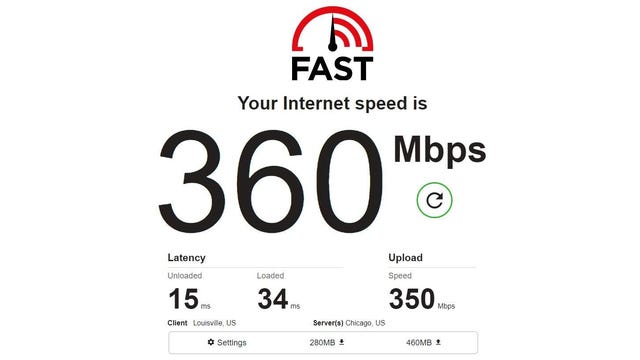
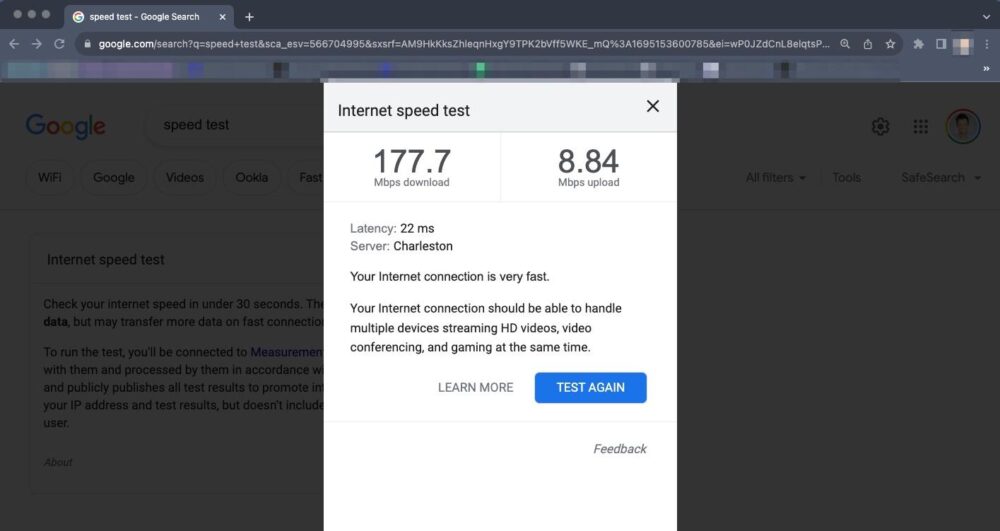
How to Test Your Bandwidth
Let’s face it – when your internet’s acting up, you want answers fast. Testing your bandwidth is like giving your connection a quick health check. Here’s how to do it right:
Download Speed: This is what most people care about. For reference:
5-25 Mbps: Good for basic use and SD streaming
25-100 Mbps: HD streaming and moderate usage
100+ Mbps: 4K streaming and heavy usage
Upload Speed: Often overlooked, but crucial for:
Video calls (you need at least 1.5 Mbps for HD)
Uploading large files
Online gaming (to reduce lag)
Ping: Measures response time. Lower is better.
Under 20ms: Excellent
20-100ms: Good for most applications
Over 100ms: You might notice delays
Real-World Testing Scenarios
I once helped a Frontier customer in rural Montana who swore his internet was “slower than molasses.” We ran tests at different times and found his speed dropped to 1 Mbps during evenings – way below the 25 Mbps he was paying for. Armed with this data, he was able to get Frontier to fix a congestion issue in his area.
Another time, a Spectrum user in Miami couldn’t figure out why his 4K streams kept buffering. Our tests showed he was getting the speed he paid for, but his Wi-Fi router was the bottleneck. A quick upgrade solved his streaming woes.
When to Call Your ISP
If your tests consistently show speeds well below what you’re paying for, it’s time to have a chat with your provider. Keep a log of your test results – dates, times, and screenshots if possible. This data is your ammunition when negotiating for better service or troubleshooting issues.
Remember, knowledge is power when it comes to your internet connection. Regular testing helps you catch issues early and ensures you’re getting what you pay for. If you’re consistently unhappy with your results, it might be time to explore other fast internet service providers in your area.
Happy testing, and may your downloads be swift and your streams buffer-free!
Ways to Maximize Your Bandwidth
Let’s face it, we’ve all been there – watching that buffering icon spin while trying to stream the season finale of your favorite show. But fear not! I’ve got some tried-and-true tricks to squeeze every last drop of speed from your internet connection.
I once helped a Spectrum customer in Austin who complained about slow speeds during video calls. We discovered their kid’s Xbox was auto-updating games during work hours. By scheduling updates for overnight, their Zoom calls went from pixelated nightmares to crystal clear.
Another time, a Frontier user in Tampa saw their speeds double after we switched them from an old 2.4GHz router to a modern dual-band model. Sometimes, the simplest changes make the biggest difference.
The Bottom Line
Maximizing your bandwidth isn’t just about throwing money at faster plans. It’s about smart management of your network and devices. By implementing these tips, you’ll be streaming, gaming, and browsing at top speed in no time.
Remember, if you’re still not happy with your speeds after trying these tricks, it might be time to explore other options. Check out fast internet service providers in your area to see if there’s a better fit for your digital lifestyle.
Now go forth and conquer the internet at lightning speed!
Understanding Fair Usage Policies
Let’s dive into the world of Fair Usage Policies (FUPs) – the internet’s equivalent of “don’t be a bandwidth hog.” These policies are how ISPs try to keep things fair for everyone on their network.
What Exactly is a Fair Usage Policy?
Fair Usage Policies are rules set by ISPs to prevent a small number of users from hogging all the bandwidth. Think of it like sharing a pizza – everyone gets a slice, but if one person tries to eat the whole thing, the party’s over.
Data Caps: Limits on how much data you can use per month
Speed Throttling: Slowing down your connection after you hit certain usage thresholds
Time-Based Restrictions: Slower speeds during peak hours
No explicit data caps, but still has network management tools
Users report consistent speeds even during peak hours
The Impact on Your Internet Experience
Streaming Quality: You might see your 4K Netflix downgrade to HD during busy times
Large Downloads: That new game patch might take longer than expected
Video Calls: Zoom meetings could get pixelated or laggy
How to Stay Within Fair Usage Limits
Monitor Your Usage: Most ISPs have apps or websites where you can track your data consumption
Schedule Big Downloads: Set those system updates for off-peak hours
Optimize Video Streaming: Do you really need 4K for that cooking show?
When Fair Usage Isn’t So Fair
Sometimes, these policies can feel anything but fair. I once helped a Frontier customer who worked nights and found his internet crawling during his prime working hours. We worked with Frontier to adjust his plan, considering his unusual schedule.
The Legal Landscape
The Federal Communications Commission (FCC) requires ISPs to be transparent about their network management practices. But let’s be real – that fine print can be harder to decipher than ancient hieroglyphics.
What to Do If You’re Always Hitting Limits
Upgrade Your Plan: Sometimes, paying a bit more can save you a lot of headaches
Negotiate: Call your ISP and see if they can offer a plan that better fits your usage
Remember, knowledge is power when it comes to Fair Usage Policies. By understanding these rules, you can make smarter choices about your internet usage and avoid those frustrating slowdowns. And if all else fails, there’s always the public library’s Wi-Fi – just don’t try downloading the entire internet there!